Reference
The symbols on your Garmin watch face, explained
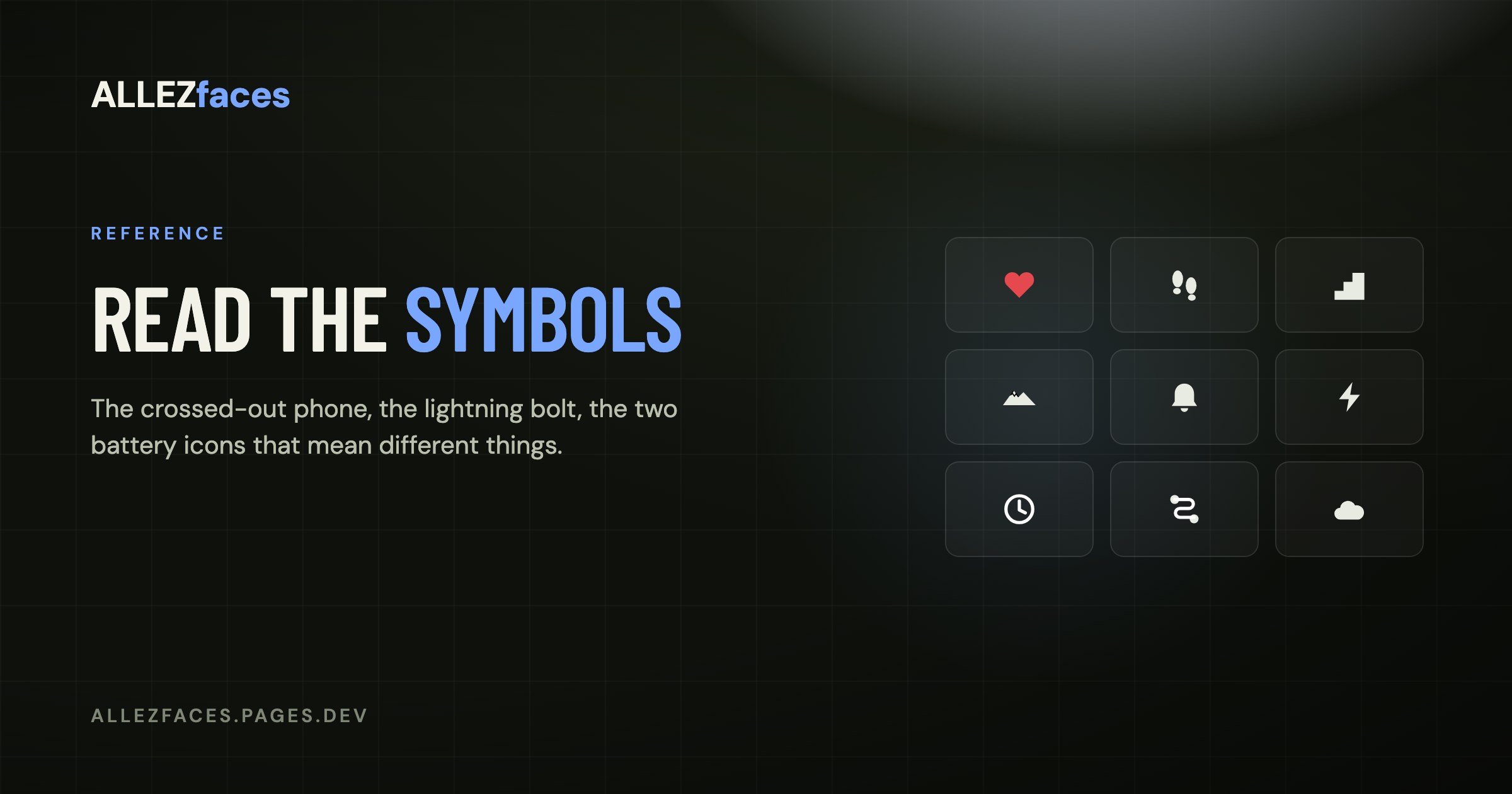
Garmin puts a lot of meaning into very small shapes. Some of those symbols come from the watch face you chose, some are drawn by the watch itself on top of whatever face you are running, and telling the two apart is half the confusion. Here is what you are looking at.
Symbols the watch draws, whatever face you use
These appear on the built-in status area and cannot be turned off by changing watch face.
- Crossed-out phone, or a phone with a line through it — the Bluetooth connection to your phone is down. Notifications, weather and sync are all paused until it comes back.
- Lightning bolt — charging. On some models it also appears briefly when the watch is on a charger that is not delivering power, which usually means a dirty contact.
- Moon — Do Not Disturb is on. Notifications are suppressed and, on most models, the backlight gesture is disabled.
- Bell, or an alarm clock — at least one alarm is set.
- Padlock — the buttons or touchscreen are locked.
- Person running / bike / swimmer — an activity is recording, or is paused.
- Aeroplane — all radios are off.
- Small dot or arc at the top of the dial — on some models, an unread notification count.
Symbols the watch face draws
Everything else is a choice the designer made, which is why two faces can use different icons for the same metric. The common ones, with what the number beside them actually is:
- Heart — current heart rate in beats per minute. Hollow or outlined on most faces; a filled heart usually means the reading is live rather than the last stored sample.
- Footprint or shoe — steps taken today, reset at midnight.
- Stairs — floors climbed, measured by the barometric altimeter. Needs a barometer; blank on watches without one.
- Flame — calories. Almost always total calories (rest plus activity), which is why the number is not zero when you wake up.
- Mountain or triangle — altitude above sea level.
- Battery outline — watch battery. A number beside it is a percentage; a second, smaller number is usually days remaining.
- Lightning bolt inside a battery — Body Battery, Garmin's energy estimate, not the watch's charge. This one causes real confusion: if a face shows two battery-like icons, one is the watch and one is you.
- Droplet — humidity, or on some faces hydration logging.
- Sun with an up or down arrow — sunrise and sunset times.
- Cloud, sun, rain, snowflake — current weather condition, from your phone.
- Thermometer — air temperature at your location, again from the phone rather than a sensor on the watch.
- Wind flag or arrow — wind speed and direction.
- Gauge or dial — barometric pressure, often with an arrow for rising or falling.
- Envelope or speech bubble — unread notifications relayed from the phone.
- Globe — a second time zone, or UTC.
- Two arrows in a circle — intensity or active minutes for the week.
The ones people ask about most
A battery icon that is not the battery
Body Battery is drawn with a battery-like glyph on many faces. If your "battery" is 63 and dropping through the afternoon while the watch says it has four days left, you are reading Body Battery. On a well-designed face the two are visually distinct; if yours are not, most configurable faces let you change what one of those cells shows.
A number with no icon at all
Some designs label with text rather than symbols — BPM, STP, KCAL. This is usually deliberate: at 240 px a legible three-letter label beats an ambiguous 12-pixel glyph.
An icon that never shows a value
The metric needs hardware your watch does not have, or a data source it cannot reach. Altitude and floors need a barometric altimeter; weather and notifications need the phone. See what the data fields mean for which is which, and swap that cell for something your watch measures.
Symbols that appear only on the fēnix 8 and newer
Newer firmware added status glyphs that older models do not draw, which is why a symbol search for your specific model sometimes turns up nothing. If a symbol appears in the status area rather than inside the dial layout, it belongs to the watch and its manual is the right reference.
Where to look it up on the watch itself
Garmin's own manual for your model has a status icon list, and it is reachable without the manual: hold the button that opens the controls menu, and most models label the toggles with the same glyphs they draw on the dial. That is the quickest way to match a symbol to a setting you can actually change.
Eleven watch faces, one licence each
Every ALLEZfaces design runs free for 7 days on your own watch, so you can see it on your wrist before you decide.
See the collectionUSD 4.99 once per design · no subscription · works on 50 Garmin models