Guide
How to install a Garmin watch face
A Garmin watch face does not install onto the watch directly. It goes to your phone first, and the Garmin Connect app pushes it to the watch on the next sync. Almost everything that goes wrong with a watch face install is that sync, not the face — which is good news, because the sync is something you can fix.
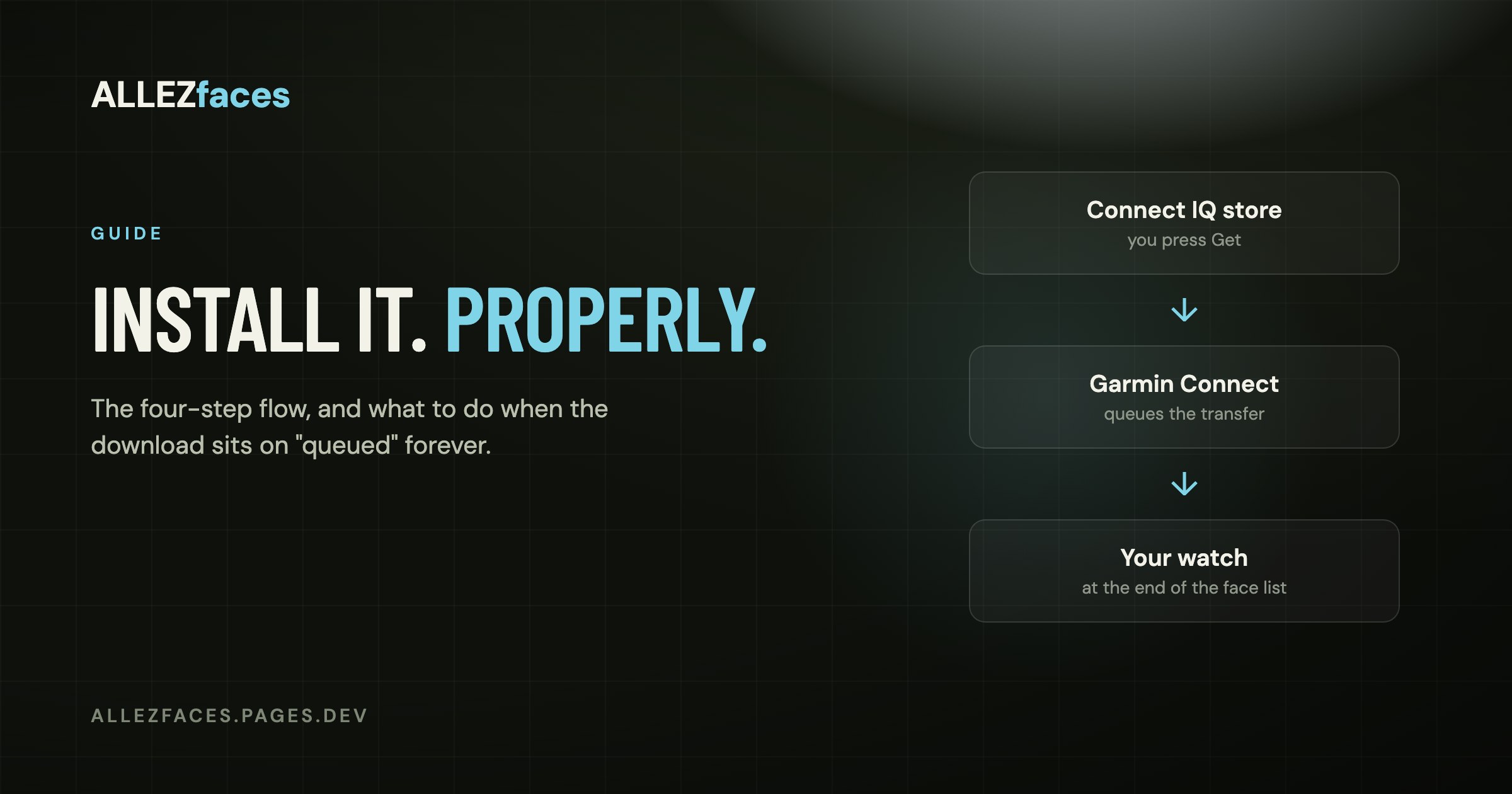
Install a watch face in four steps
- Find the face in the Connect IQ store. Either in the Connect IQ app on your phone, or on the web at apps.garmin.com. If you are looking at a design on this site, the Download button on its page opens its listing directly.
- Tap Get or Download. You will be asked which of your devices it is for, if you own more than one.
- Open Garmin Connect and let it sync. The phone needs Bluetooth on, the watch needs to be in range, and Garmin Connect needs to be running — in the foreground the first time, because phones aggressively suspend background apps.
- Pick the face on the watch. On most current models: Settings → Watch Face, or hold the middle button on the current face and scroll. New Connect IQ faces land at the end of that list.
That is the whole flow. A watch face is typically a couple of megabytes, so the transfer itself takes seconds once the sync starts.
Connect IQ faces are separate from the watch faces built into your Garmin. Installing one never removes the stock ones, and you can switch back at any time from the same list.
"Install queued" and nothing happens
This is the single most common complaint, and it is almost always the phone, not the watch.
"Queued" means the store has accepted the download and is waiting for Garmin Connect to hand it over to the watch. Things that unstick it, in the order worth trying:
- Open Garmin Connect and leave it on screen for a minute, with the watch nearby. Background sync is unreliable on both iOS and Android battery-saver settings.
- Trigger a manual sync from the device page in Garmin Connect, rather than waiting for the automatic one.
- Force-close Garmin Connect and reopen it. A stale Bluetooth session will keep reporting "queued" forever.
- Check the watch's storage. Garmin watches hold a limited number of Connect IQ items; if yours is full, the install silently waits. Remove an app or face you no longer use.
- Restart the watch. On most models, hold the light button and choose Power Off, then start it again.
If it is still queued after all of that, remove the face in the Connect IQ app and install it again. The second attempt usually goes through immediately, because the sync session has been rebuilt in the meantime.
It installed, but the face is not on my watch
Two different things are being confused here: installed and selected. Installing puts the face into the watch's list; it does not switch to it.
Scroll the watch's full watch-face list to the end. Connect IQ faces are appended after the built-in ones, and on a watch that has collected a few of them the new one can be several screens down. If the list genuinely does not contain it, the sync did not complete — go back to the section above.
One more case worth knowing: if your watch has multiple activity profiles or a "custom" watch face slot, changing the face inside one profile does not change it everywhere.
Where are the settings?
Connect IQ watch face settings live in the phone app, not on the watch. Open Garmin Connect → your device → Connect IQ Apps → Watch Faces, pick the face, and open Settings. This is where you change colours, pick what each data field shows, and paste a licence key if the face uses one.
If the Settings entry is blank the first time you open it, close Garmin Connect completely and reopen it. The list is fetched from the watch, and a half-finished fetch renders as an empty screen.
Changing the face on the watch itself
You do not need the phone to switch between faces you already have:
- On a fēnix, Forerunner or Instinct: hold the middle/up button on the current face, then choose Watch Face, and scroll.
- On a Venu or vívoactive: touch and hold the face, then swipe.
Only the installed set appears here. Adding a new one always goes through the phone.
Uninstalling
In the Connect IQ app, open My Device → Watch Faces, pick the face and remove it. It disappears from the watch on the next sync. If you paid for a design with a licence key, removing it does not consume anything — reinstalling and pasting the same key works again, on up to three watches.
When it still will not work
Before you conclude that the face is broken, check the two things that genuinely block an install:
- Compatibility. A Connect IQ item lists the models it supports. A design built for round AMOLED watches will not appear for a device it does not list, and the store will simply not offer it for that watch.
- Firmware. A face built against a newer Connect IQ version needs a watch that is up to date. Garmin Express or the phone app will tell you if a firmware update is waiting.
If you are using an ALLEZfaces design and none of this helps, the install and licence help page covers the licence-specific cases, and the e-mail address on it reaches the person who wrote the face.
Eleven watch faces, one licence each
Every ALLEZfaces design runs free for 7 days on your own watch, so you can see it on your wrist before you decide.
See the collectionUSD 4.99 once per design · no subscription · works on 50 Garmin models